Task Manager#
The Task Manager chains experiments, tuning, analysis and reports into a schedule that runs without you. Build the chain by dragging nodes onto the canvas and connecting them; execution follows the links.
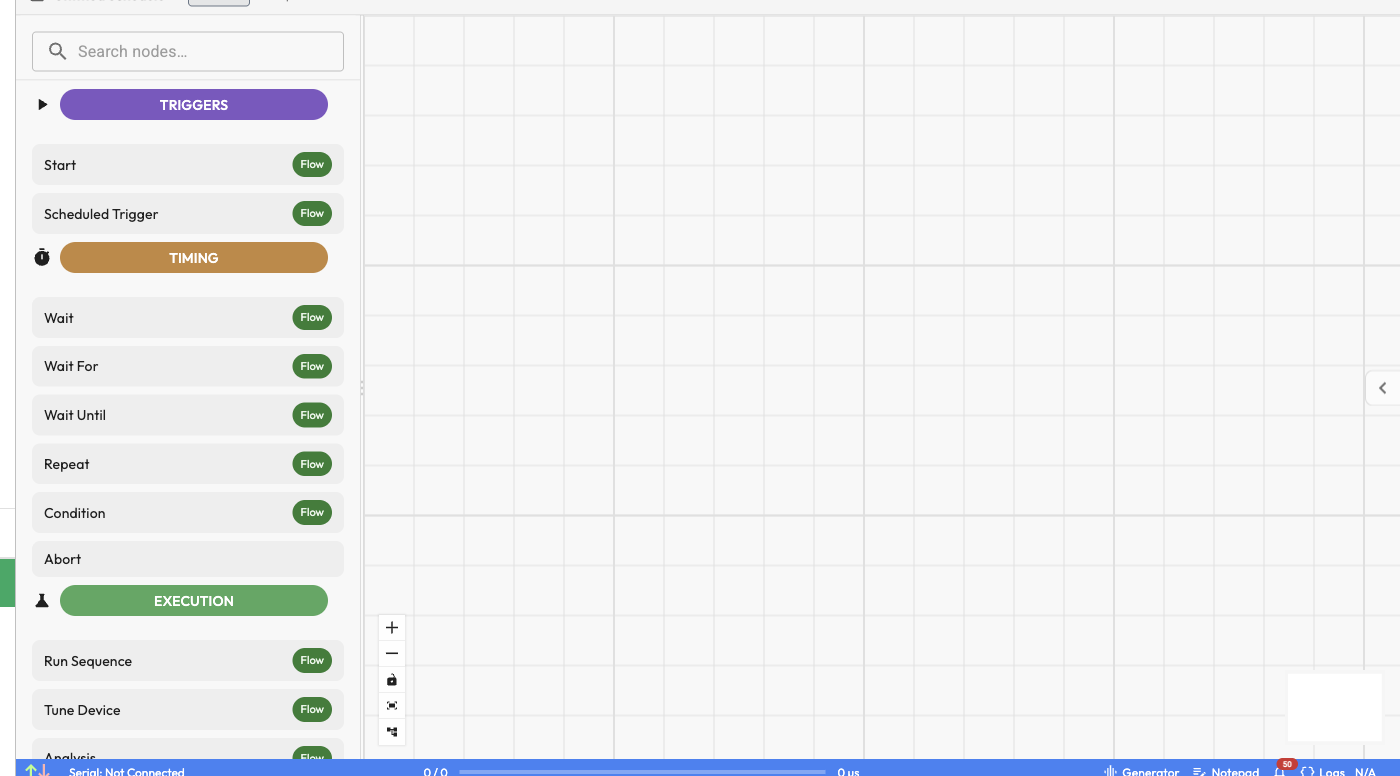
Nodes#
| Node | What it does |
|---|---|
| Start | A manual entry point. Run Now begins here, so a schedule needs exactly one to be run by hand. |
| Scheduled Trigger | A timed entry point: once, every interval, or on chosen weekdays. See Arming a schedule. |
| Run Sequence | Runs a saved experiment from the Sequence page, with its own scan count and phase cycling, and an option to save the result. |
| Tune Device | Runs a tuning operation: All-Auto, or one of frequency, dead time, duration or phase individually. It can also run a T1 or T2 measurement and collect the fit. |
| Connect Device | Connects an instrument before the steps that need it. |
| Multi-Device | Runs separate branches on several instruments. Every branch needs a device, and one Multi-Device node cannot sit inside another. |
| Open Project | Switches to another project from the Data Browser, so one schedule can work through several samples. |
| Set Save Group | Chooses where later results are saved. |
| Analysis | Runs a saved analysis on the current data. |
| QC Measurement | Runs a quality-control measurement and can fail the schedule if it does not pass. |
| Generate Report | Builds a report from a template, optionally saving it automatically. Scope chooses the current scan, each scan of the working set, or each scan that earlier steps of this run brought in (an Import Files step or an acquisition); the last two write one report per scan, and Batch summary adds the index report. |
| Export Results | Writes the run's results to a folder, for a LIMS or another program to pick up. See Exporting results. |
| Wait, Wait For, Wait Until | Pause for a duration, for a condition, or until a time of day. |
| Repeat | Runs the nodes in its Loop output a set number of times, then continues from Done. |
| Verify Structure | Checks a structure against the spectra of the run's samples. See Structure steps. |
| Elucidate Structure | Proposes structures from the spectra of the run's samples. Offered only in editions that include structure elucidation. See Structure steps. |
| Condition | Branches on whether the last step passed, QC passed, the latest verification was consistent, needed review or was inconsistent, or the latest elucidation proposed a structure. |
| Notify | Shows a message with a severity you choose. The message can contain {sample}, {verdict}, {top_structure} and {missing}, filled from the latest verification or elucidation step. |
| Abort | Stops the run with a reason. |
Select a node to configure it. A node with a missing setting (no experiment chosen, no devices in a Multi-Device node, a Wait of zero) is listed by name when you try to run or arm the schedule. Connected nodes are joined by an animated link showing the direction of flow, and the node currently executing is outlined.
Running and saving#
Run Now runs the chain from the Start node after checking the schedule for problems. If the schedule has unsaved edits you are asked whether to save first, because the scheduler only ever runs the saved version. Problems that would make the run fail must be fixed first; others can be run anyway. A Run Now button on a Scheduled Trigger node runs from that trigger instead.
While a run is going the button turns into Cancel, which asks for confirmation. Pressing Shift+Enter never cancels a run.
New, Save, Save As and Open manage named schedules; a saved schedule can be triggered from Basic mode with a single button. Saving a schedule whose Scheduled Trigger is enabled also arms it, and the confirmation tells you when it will next run.
Exporting results#
The Export Results node (under Output in the node list) writes one folder per run, holding what the run produced. Point it at a folder another program watches, such as a LIMS import folder.
| Setting | What it does |
|---|---|
| Destination folder | Where the folders are written. It must be a full path; it is created if it does not exist. Choose the destination folder opens a folder picker. |
| Peak table (CSV) | Adds peaks.csv. On by default. |
| Report (PDF) | Adds report.pdf, built from the Template you choose (Current Template uses the project's own). Off by default. |
| Bundle name | The folder name. Placeholders: {schedule}, {sample}, {scan}, {date}, {time}, {execution}. The default is {date}_{time}_{sample}_{execution}. |
| Webhook URL | Optional. The run's result.json is also sent there as an HTTP POST. |
| Headers | Plain headers for the webhook, one Name: value per line. They are saved in the schedule, so do not put tokens here. |
| Set secret headers… | Headers kept encrypted in your profile, never in the schedule. They are sent only to the address they were stored for, and only over https or to this computer. |
| Timeout (s) | How long to wait for the webhook, 1 to 300 seconds. The default is 15. |
| Destinations | Shown when a plugin provides one. Delivers the report, peak table, the scan (Include scan data) and result.json to a notebook such as eLabFTW. See Sending to a notebook. |
| Fail the step if the export or webhook fails | Off by default. |
Each run gets its own folder. An existing folder is never overwritten: a second folder with the same name gets _2, then _3, and so on. The folder is written under a hidden name and renamed into place when complete, so a program watching the destination never sees half a bundle.
A folder holds:
result.json, always: the run, project, sample, method, instrument, scan, QC results from this run, peaks, shifts and integrals, and a list of the files with their checksums. See Supported formats.peaks.csv, if ticked.report.pdf, if ticked.
Sending to a notebook#
Add destination picks an installed destination and shows its connection: server address, API key (saved encrypted, never in the schedule), Test, and the Target to deliver to. The schedule stores only the server address, the target and an id for the saved key. Destination folder may be left empty when a destination is set. Tick Report (PDF) to send the report. Each destination's outcome (link or reason) is recorded with the step; a failure fails the step only when Fail the step if the export or webhook fails is ticked. A connector can be written for other notebooks: see Notebook connectors.
If the folder cannot be written, the step fails. A report or webhook failure fails the step only when Fail the step if the export or webhook fails is ticked; otherwise the step completes and the error is recorded with it. The webhook never follows redirects, and only a 2xx answer counts as delivered.
Note
Secret headers are stored in the profile that set them. If they are not there when the step runs, the webhook is sent without them and a warning is logged.
Structure steps#
Verify Structure and Elucidate Structure work on the sample of the run: the samples of the scans that earlier steps of the run brought in, else the sample of the loaded scan, else the project's own sample. Sample pins one sample instead. The steps read every scan of the sample in the project, not only the ones this run imported.
Experiment slots#
Each step fills five slots from the sample's scans: ¹H, ¹³C, HSQC, HMBC and COSY. A slot takes the newest scan of its experiment type; a DEPT fills the ¹³C slot only when the sample has no ¹³C spectrum. Scans that fit no slot (diffusion, J-resolved, relaxation) are listed as ignored in the step result. The chips on the node show what each slot holds; selecting a chip pins another scan or, for Elucidate Structure, turns the slot off. A pinned scan that is no longer in the sample falls back to the newest one, and the result says so.
- Verify Structure needs a structure and any one readable experiment.
- Elucidate Structure needs ¹H and ¹³C. HSQC and HMBC add constraints. COSY is used for checks only.
Missing scans#
Missing scans decides what happens when a required slot is empty: fail the step, skip it, or wait for later scans of the sample, up to the wait limit (10 minutes unless changed). The wait can be cancelled. A skipped or failed step lists the missing slots. An unchanged sample is not processed twice in a session unless Re-run is set to always.
Structure source#
Verify Structure takes its structure from the sample's analytes, a SMILES string, a structure file, or the top candidate of an earlier Elucidate Structure step.
Elucidate Structure settings#
- Formula is optional. Without one the run is formula-free; if the sample records a molecular formula it is used.
- Halogens offers F, Cl, Br and I to the search.
- Candidates is the number of ranked structures kept.
- Result: Keep as proposal stores the candidates on the project; Fill empty sample also records the top candidate as the analyte of a sample that has none. A run that matched no candidate to the correlations stores nothing as an answer.
There is no time limit: a solve runs until it finishes or the run is cancelled. Only one solve runs at a time; a step waits for a free solver, and the Elucidation page shows Busy: scheduled run with Cancel while a scheduled run holds it.
Results#
Verify Structure keeps its latest verdict on the sample's record, and Elucidate Structure keeps its latest outcome on the project; both are marked as automated. Neither step signs or approves anything. Fail on makes a Verify Structure step fail on needs review, inconsistent, or both. In report templates the verdict is {{verification.verdict}} and the candidates are {{elucidation.candidates}}, with {{elucidation.status}}, {{elucidation.count}}, {{elucidation.top}} and {{elucidation.formula}}.
Watching a folder#
A Scheduled Trigger that watches a folder can group arrivals into samples: Sample per scan (the default) or Sample per folder, where scans arriving in one folder share a sample. The Identify structures option in the watch-folder dialog builds the chain Import Files, Elucidate Structure, Verify Structure, Condition (consistent) and Notify, with grouping by folder.
Built-in schedules#
Open lists four built-in schedules after your own: Tune Acquire QC Report, Overnight T2 Series, Rack Walk and Weekday Morning Suitability. They open with a Built-in chip and are read-only; use Save As to make your own copy, then adapt it. The QC steps expect a QC configuration named "System Suitability", and Rack Walk opens projects named "Rack A1" to "Rack A3"; change these to match your own.
Arming a schedule#
A Scheduled Trigger node has an Arm button. Arming saves the schedule and lets the scheduler start it at the times you chose; Disarm stops that without deleting the trigger or its history. Each trigger arms on its own, so one schedule can run "every 6 hours" and "weekdays at 09:00" side by side. The schedule header shows how many triggers are armed and when the next one fires.
- Run once needs a date and time in the future.
- Every interval repeats every set number of minutes, hours or days.
- Weekly needs at least one weekday.
- On Failure decides what a failed step does: Skip carries on with the next step, Abort stops that run but leaves the trigger armed, Cancel stops the run and disarms the trigger.
If you edit an armed schedule, the status chip reads Armed (old settings): the scheduler still has the version saved when it was armed. Use Re-arm with current settings on the trigger node to save and re-arm in one step.
What the scheduler skips#
An armed trigger remembers the project and profile that were open when you armed it and shows them on the node (for example "Runs in project Sample 12 as lab"). A scheduled time that arrives while a different project or profile is open is skipped, not run in the wrong place. A time missed because the app or computer was not running is skipped too, if it is too late: more than 6 hours for a run-once trigger, an hour for weekly, five minutes for interval. Nothing is replayed in a batch. Every skip is recorded in Run History with its reason.
To keep armed schedules running when you close the app, turn on Run Scheduled Jobs in Background in Settings.
A worked example#
To measure T1 and T2 on two samples overnight:
- Drop a Start node.
- Add a Tune Device node set to All-Auto, so the instrument is tuned before anything is recorded.
- Add a Run Sequence node with the sequence and scan count you want, and saving enabled.
- Add a second Tune Device node set to T1, then a third set to T2.
- Add an Open Project node pointing at the second sample's project, and repeat steps 3 and 4 after it.
- Connect them in order and press Run Now.
To start it at night instead, add a Scheduled Trigger with tomorrow's date, connect it to the first node and press Arm.
Note
Anything the schedule saves goes into whichever project is current at that point. An Open Project node placed after the experiments that belong to it will file them in the wrong place.